chrisclement.com/tbtc/2.htm THIS PAGE
https://tampa-bay.org/calendar/

We can work with this on Windows, Mac, or Linux.
I will decide at the last minute which platform is best. Linux Mint is on one of my boxes and is very
cool. I have Python and some powerful math stuff there. Windows is more familiar but inside the Arduino IDE
(Integrated Development Environment} things are pretty much the same. My Mac is not working.
We saw this last time:
Example: Basic Arduino Blink Sketch
// Blink an LED on pin 13 (or possibly 9 depending on version)
void setup() {
pinMode(13, OUTPUT); // Set pin 13 as output
}
void loop() {
digitalWrite(13, HIGH); // LED on
delay(1000); // Wait 1 second
digitalWrite(13, LOW); // LED off
delay(1000); // Wait 1 second
}
This simple program is the "hello world" program that shows that we succeeded with compiling and running.
also PWM (pulse width modulation)
Another free example using just one LED is:
/*
Fade
This example shows how to fade an LED on pin 9 using the analogWrite() function.
The analogWrite() function uses PWM, so if you want to change the pin you're
using, be sure to use another PWM capable pin. On most Arduino, the PWM pins
are identified with a "~" sign, like ~3, ~5, ~6, ~9, ~10 and ~11.
This example code is in the public domain.
https://docs.arduino.cc/built-in-examples/basics/Fade/
*/
int led = 9; // the PWM pin the LED is attached to
int brightness = 0; // how bright the LED is
int fadeAmount = 5; // how many points to fade the LED by
// the setup routine runs once when you press reset:
void setup() {
// declare pin 9 to be an output:
pinMode(led, OUTPUT);
}
// the loop routine runs over and over again forever:
void loop() {
// set the brightness of pin 9:
analogWrite(led, brightness);
// change the brightness for next time through the loop:
brightness = brightness + fadeAmount;
// reverse the direction of the fading at the ends of the fade:
if (brightness <= 0 || brightness >= 255) {
fadeAmount = -fadeAmount;
}
// wait for 30 milliseconds to see the dimming effect
delay(30);
}
These are good starts without having to do a lot of typing. Another way to experiment is to use AI!
This is called VIBE coding (sometimes disparagingly) but techies know about it. For simple tasks
that you can verify, it's a super time saver.
Describe what you want:
"arduino uno has 4 leds on 10 11 12 and 13 that are red yellow green and blue.
make them work like a traffic light for one minut then like police lights another minute and repeat."
(my words with misspelling)
Choose AI agent. I simply used the Edge browser Copilot which is free and at top right of the browser window.
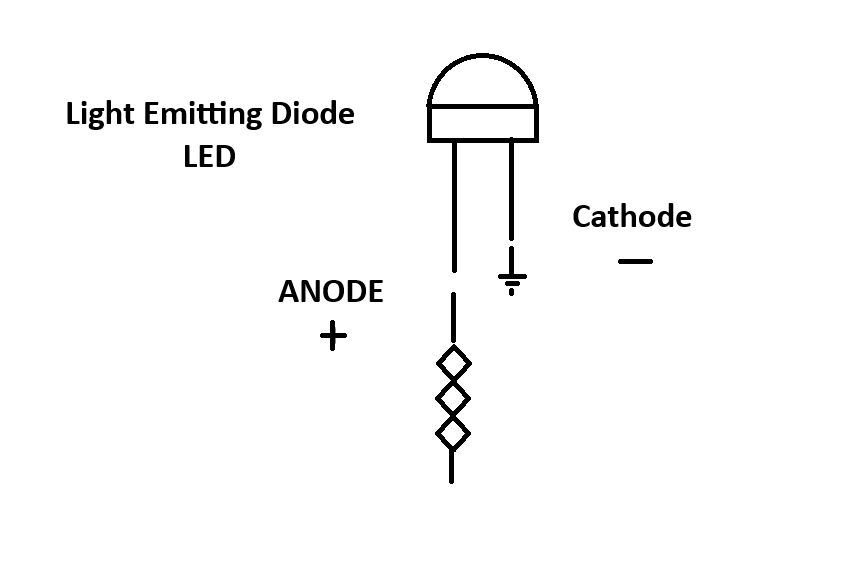
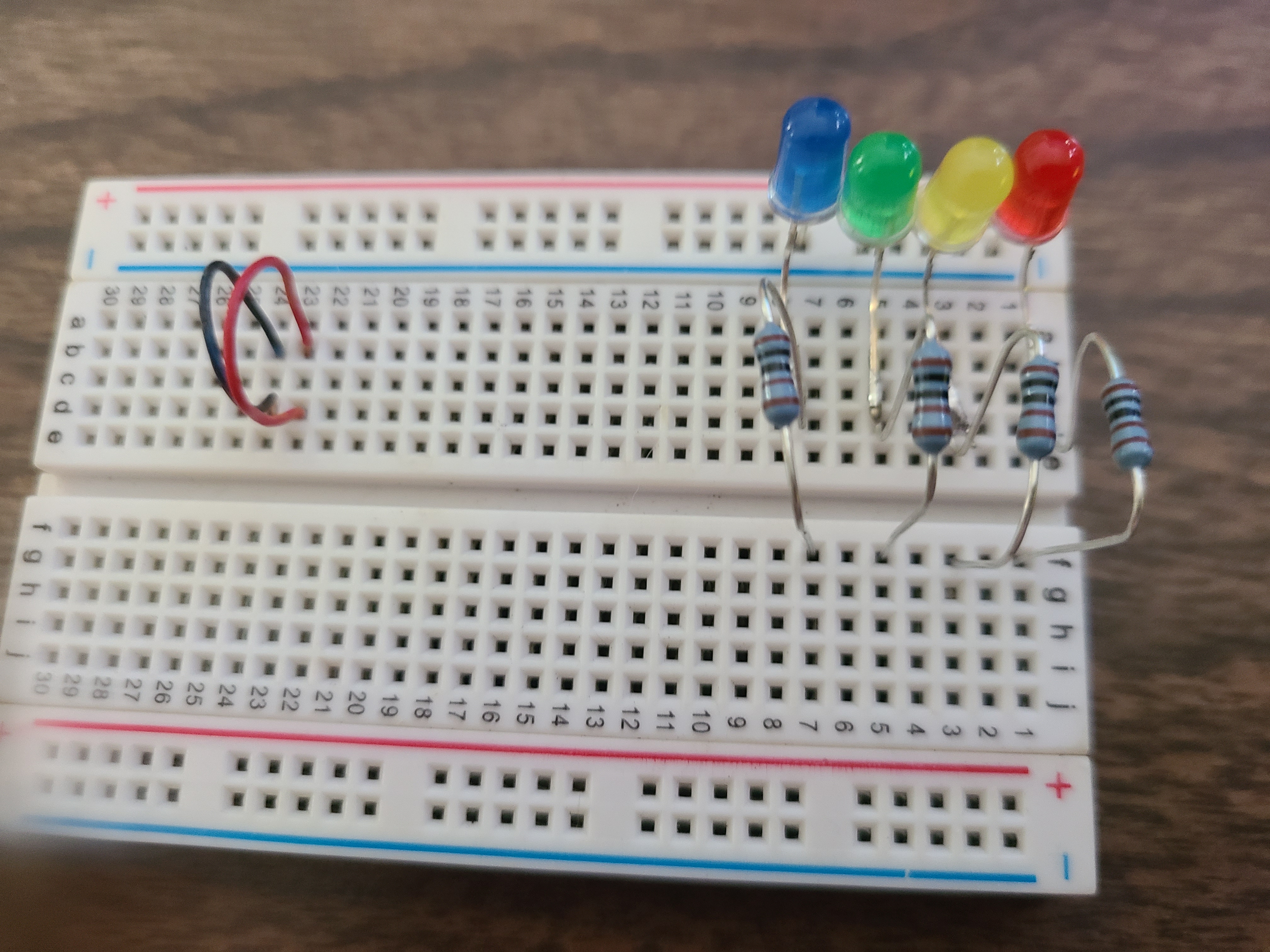 Always use 1k resistors on GPIO pins and with LEDS.
Long leads or red leads should be positive +
Always use 1k resistors on GPIO pins and with LEDS.
Long leads or red leads should be positive +
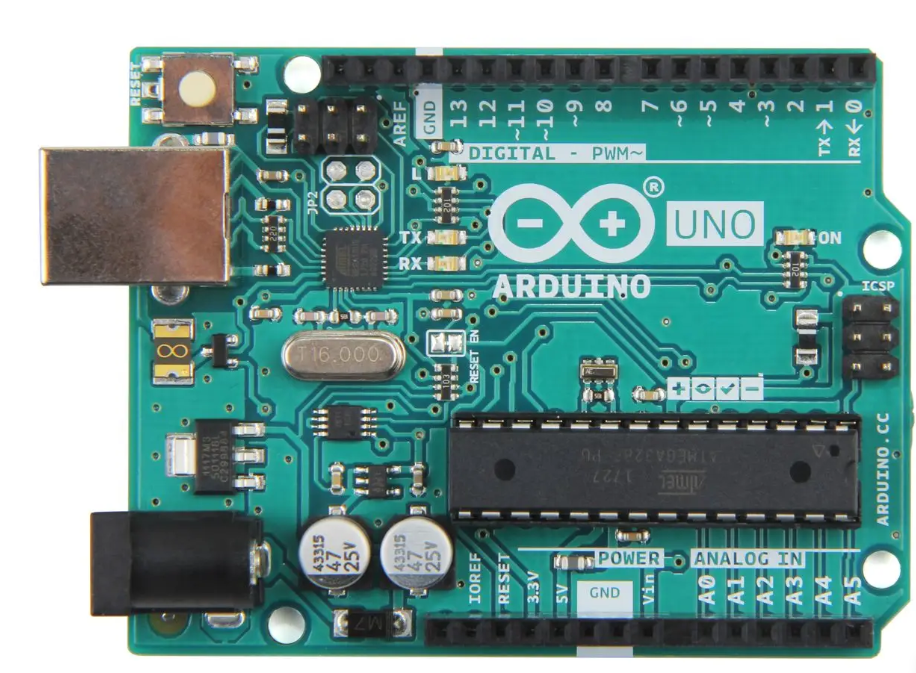 So this is what Copilot came back with in a second or two!
const int RED = 10;
const int YELLOW = 11;
const int GREEN = 12;
const int BLUE = 13;
unsigned long modeStart = 0;
bool trafficMode = true;
void setup() {
pinMode(RED, OUTPUT);
pinMode(YELLOW, OUTPUT);
pinMode(GREEN, OUTPUT);
pinMode(BLUE, OUTPUT);
modeStart = millis();
}
void loop() {
// Change mode every 60 seconds
if (millis() - modeStart >= 60000UL) {
trafficMode = !trafficMode;
modeStart = millis();
allOff();
}
if (trafficMode) {
runTrafficLight();
} else {
runPoliceLights();
}
}
void allOff() {
digitalWrite(RED, LOW);
digitalWrite(YELLOW, LOW);
digitalWrite(GREEN, LOW);
digitalWrite(BLUE, LOW);
}
void runTrafficLight() {
// Red
digitalWrite(RED, HIGH);
digitalWrite(YELLOW, LOW);
digitalWrite(GREEN, LOW);
digitalWrite(BLUE, LOW);
delay(5000);
// Red + Yellow
digitalWrite(YELLOW, HIGH); //We could omit this yellow before green (common sense is lacking in AI).
delay(2000);
// Green
digitalWrite(RED, LOW);
digitalWrite(YELLOW, LOW);
digitalWrite(GREEN, HIGH);
delay(5000);
// Yellow
digitalWrite(GREEN, LOW);
digitalWrite(YELLOW, HIGH);
delay(2000);
digitalWrite(YELLOW, LOW);
}
void runPoliceLights() {
for (int i = 0; i < 15; i++) {
// Red flashes
for (int j = 0; j < 3; j++) {
digitalWrite(RED, HIGH);
digitalWrite(BLUE, LOW);
delay(100);
digitalWrite(RED, LOW);
delay(100);
}
// Blue flashes
for (int j = 0; j < 3; j++) {
digitalWrite(BLUE, HIGH);
digitalWrite(RED, LOW);
delay(100);
digitalWrite(BLUE, LOW);
delay(100);
}
}
}
OK, so what can we do with only a few LEDs? Think Christmas displays, Halloween, Crazy yard decorations, etc.
Even on clothing! Adafruit has done a lot of this.
LEDs also serve as visible indicators of other things we wish to interact with. Let's say we want to control
something big in the real world. My recommendation is to avoid direct electrical contact for safety reasons and
to protect delicate GPIO pins on your Arduino. The flash of light can simultaneously be used to control something and
let you see what it is doing. It is also immune to static, surges, shorts, and other electrical faults.
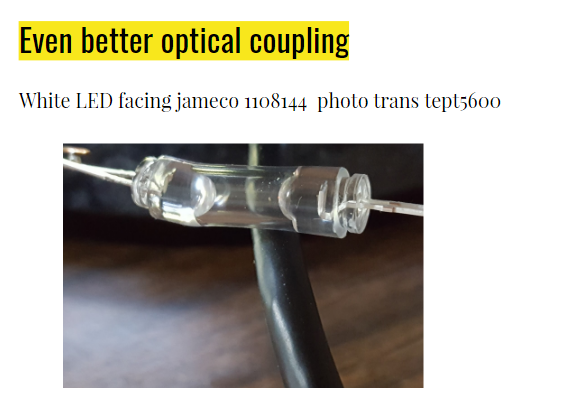
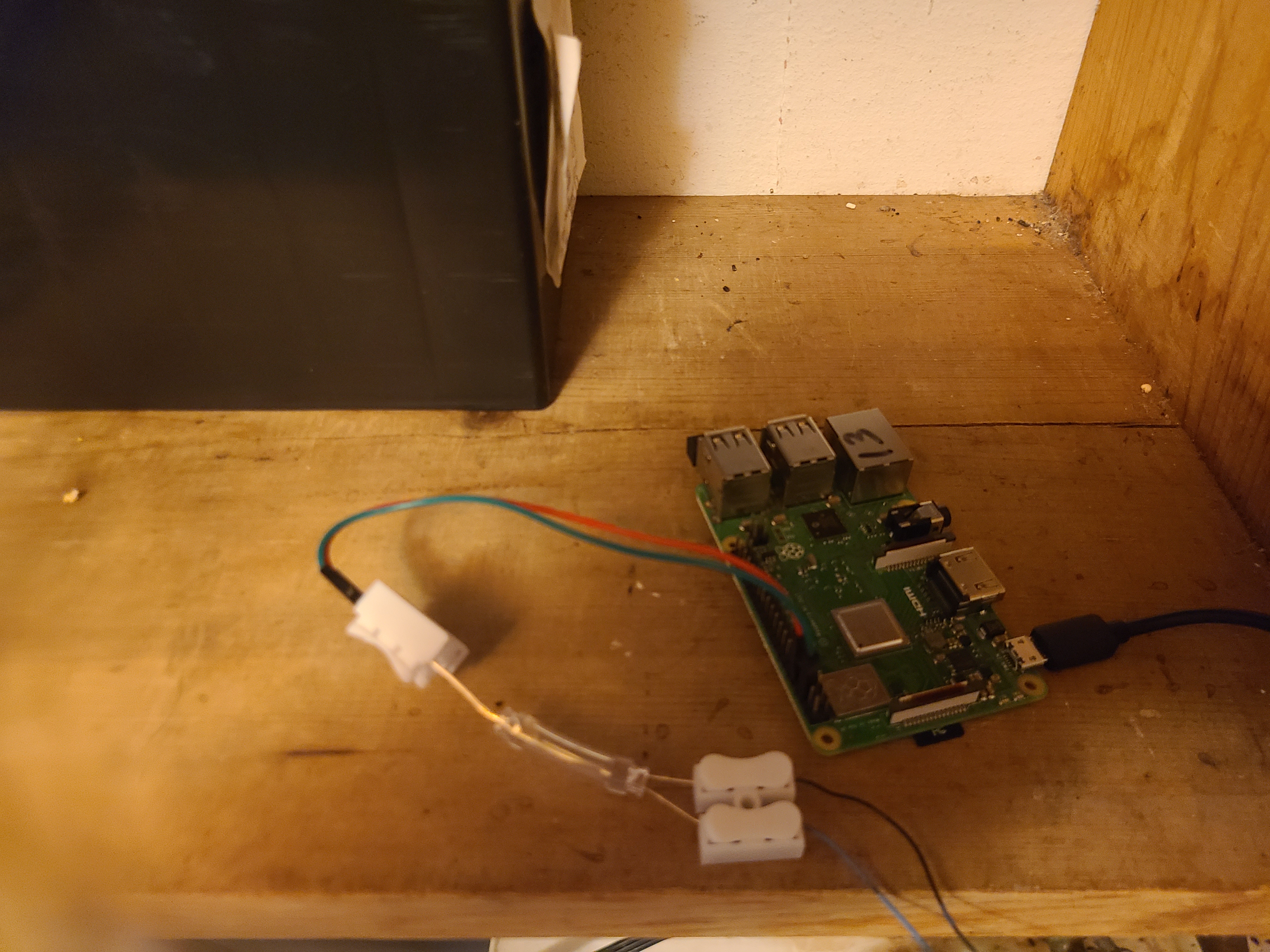
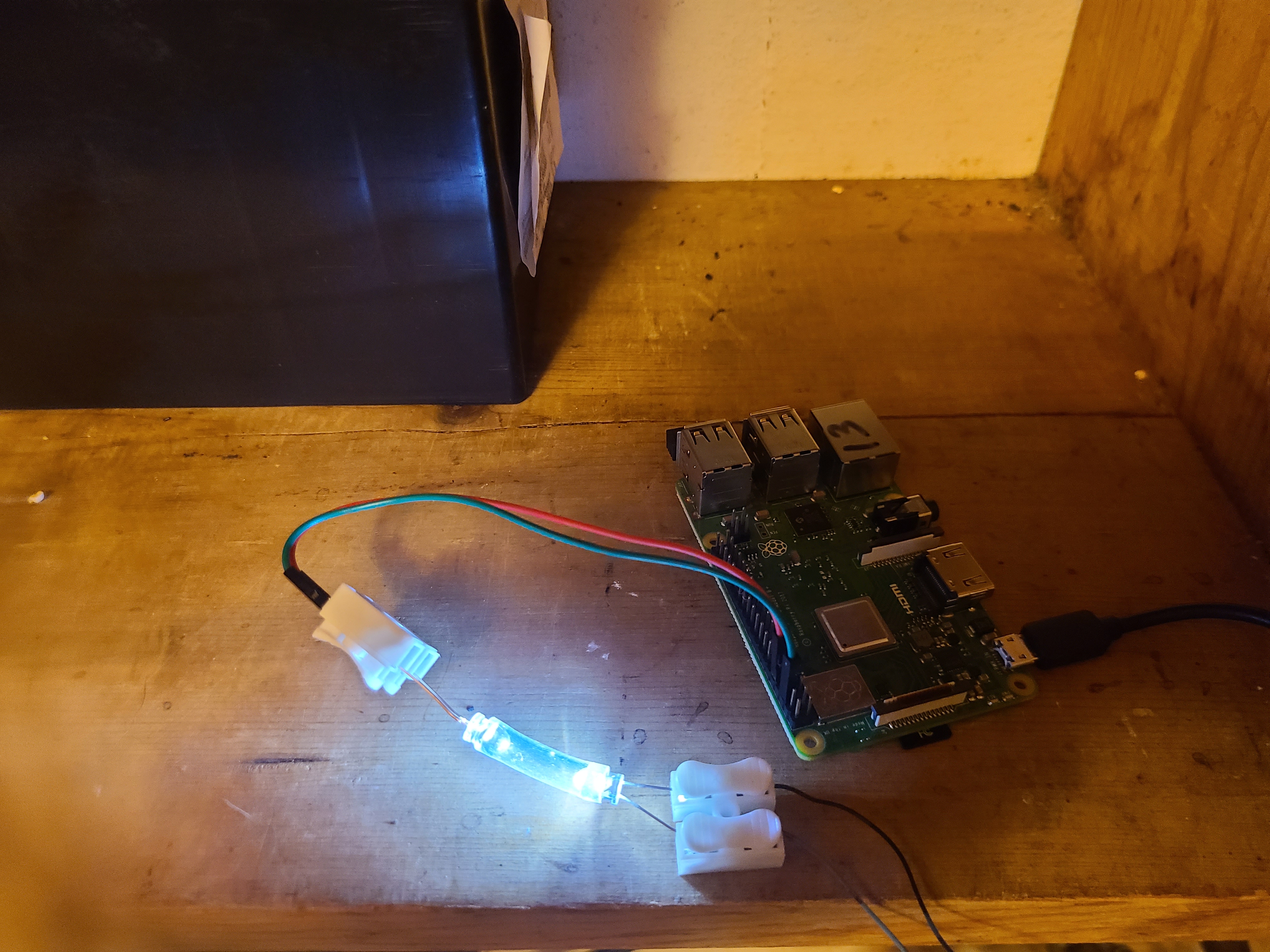
This is called optocoupling. Also we can use a relay (a switch operated by electricity). With these you could control
railroad crossings and factory machines!
So this is what Copilot came back with in a second or two!
const int RED = 10;
const int YELLOW = 11;
const int GREEN = 12;
const int BLUE = 13;
unsigned long modeStart = 0;
bool trafficMode = true;
void setup() {
pinMode(RED, OUTPUT);
pinMode(YELLOW, OUTPUT);
pinMode(GREEN, OUTPUT);
pinMode(BLUE, OUTPUT);
modeStart = millis();
}
void loop() {
// Change mode every 60 seconds
if (millis() - modeStart >= 60000UL) {
trafficMode = !trafficMode;
modeStart = millis();
allOff();
}
if (trafficMode) {
runTrafficLight();
} else {
runPoliceLights();
}
}
void allOff() {
digitalWrite(RED, LOW);
digitalWrite(YELLOW, LOW);
digitalWrite(GREEN, LOW);
digitalWrite(BLUE, LOW);
}
void runTrafficLight() {
// Red
digitalWrite(RED, HIGH);
digitalWrite(YELLOW, LOW);
digitalWrite(GREEN, LOW);
digitalWrite(BLUE, LOW);
delay(5000);
// Red + Yellow
digitalWrite(YELLOW, HIGH); //We could omit this yellow before green (common sense is lacking in AI).
delay(2000);
// Green
digitalWrite(RED, LOW);
digitalWrite(YELLOW, LOW);
digitalWrite(GREEN, HIGH);
delay(5000);
// Yellow
digitalWrite(GREEN, LOW);
digitalWrite(YELLOW, HIGH);
delay(2000);
digitalWrite(YELLOW, LOW);
}
void runPoliceLights() {
for (int i = 0; i < 15; i++) {
// Red flashes
for (int j = 0; j < 3; j++) {
digitalWrite(RED, HIGH);
digitalWrite(BLUE, LOW);
delay(100);
digitalWrite(RED, LOW);
delay(100);
}
// Blue flashes
for (int j = 0; j < 3; j++) {
digitalWrite(BLUE, HIGH);
digitalWrite(RED, LOW);
delay(100);
digitalWrite(BLUE, LOW);
delay(100);
}
}
}
OK, so what can we do with only a few LEDs? Think Christmas displays, Halloween, Crazy yard decorations, etc.
Even on clothing! Adafruit has done a lot of this.
LEDs also serve as visible indicators of other things we wish to interact with. Let's say we want to control
something big in the real world. My recommendation is to avoid direct electrical contact for safety reasons and
to protect delicate GPIO pins on your Arduino. The flash of light can simultaneously be used to control something and
let you see what it is doing. It is also immune to static, surges, shorts, and other electrical faults.
This is called optocoupling. Also we can use a relay (a switch operated by electricity). With these you could control
railroad crossings and factory machines!
 dr duino code
search 30pcs self locking electrical cable connectors quick splice lock wire clip connectors electrical wire
here
search Dupont wires
here
dr duino code
search 30pcs self locking electrical cable connectors quick splice lock wire clip connectors electrical wire
here
search Dupont wires
here